
Step 1: Orders dashboard overview
Go to Orders from the sidebar to see all your eBay orders in one place. The dashboard shows:
- New orders waiting to be fulfilled
- In progress orders being processed
- Completed orders with tracking uploaded
- Cancelled and returned orders
Each order shows the buyer name, product, sale price, profit, and current status.
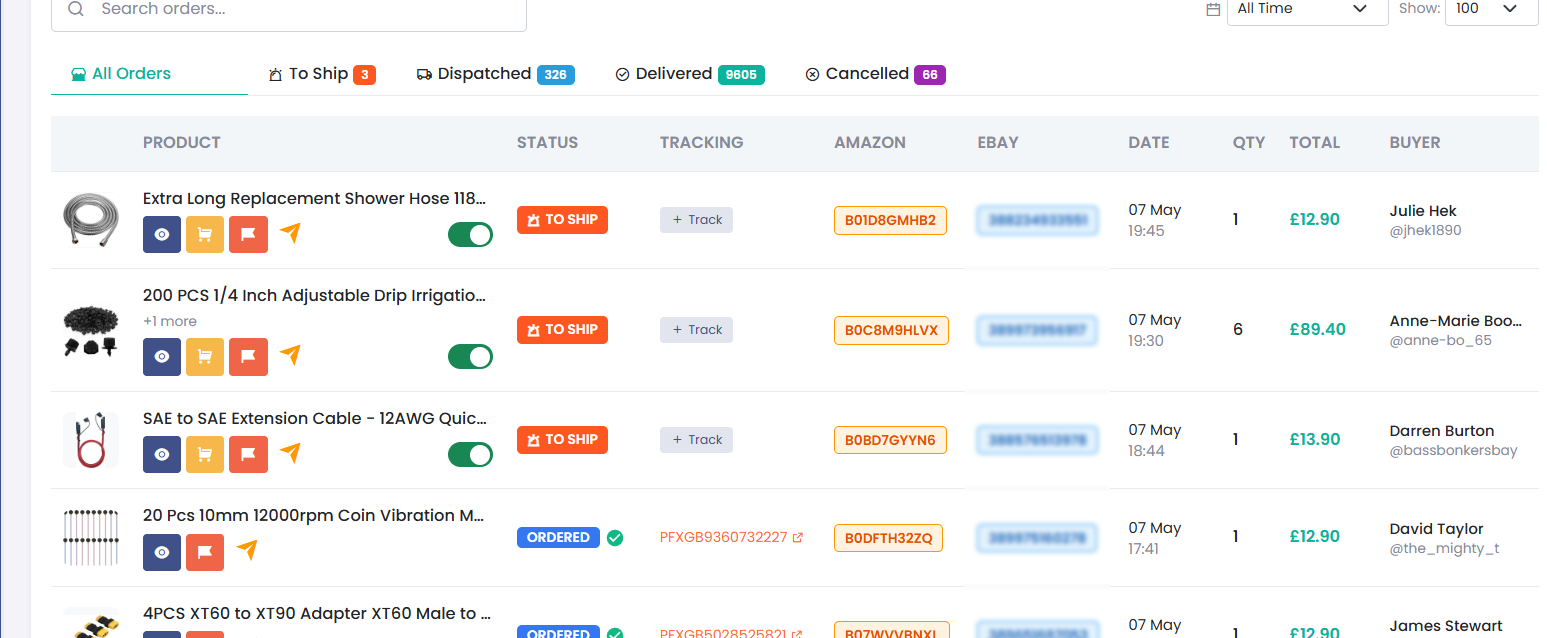
Step 1: Orders dashboard overview
Step 2: Processing a new order
When a new order comes in:
- Go to Orders and click on the new order
- You'll see the order details: buyer address, product, Amazon ASIN, and calculated profit
- Purchase the product on Amazon using the buyer's delivery address
- Once shipped, enter the Amazon Order ID and tracking number in Coderom
- Coderom uploads the tracking to eBay and marks the order as shipped
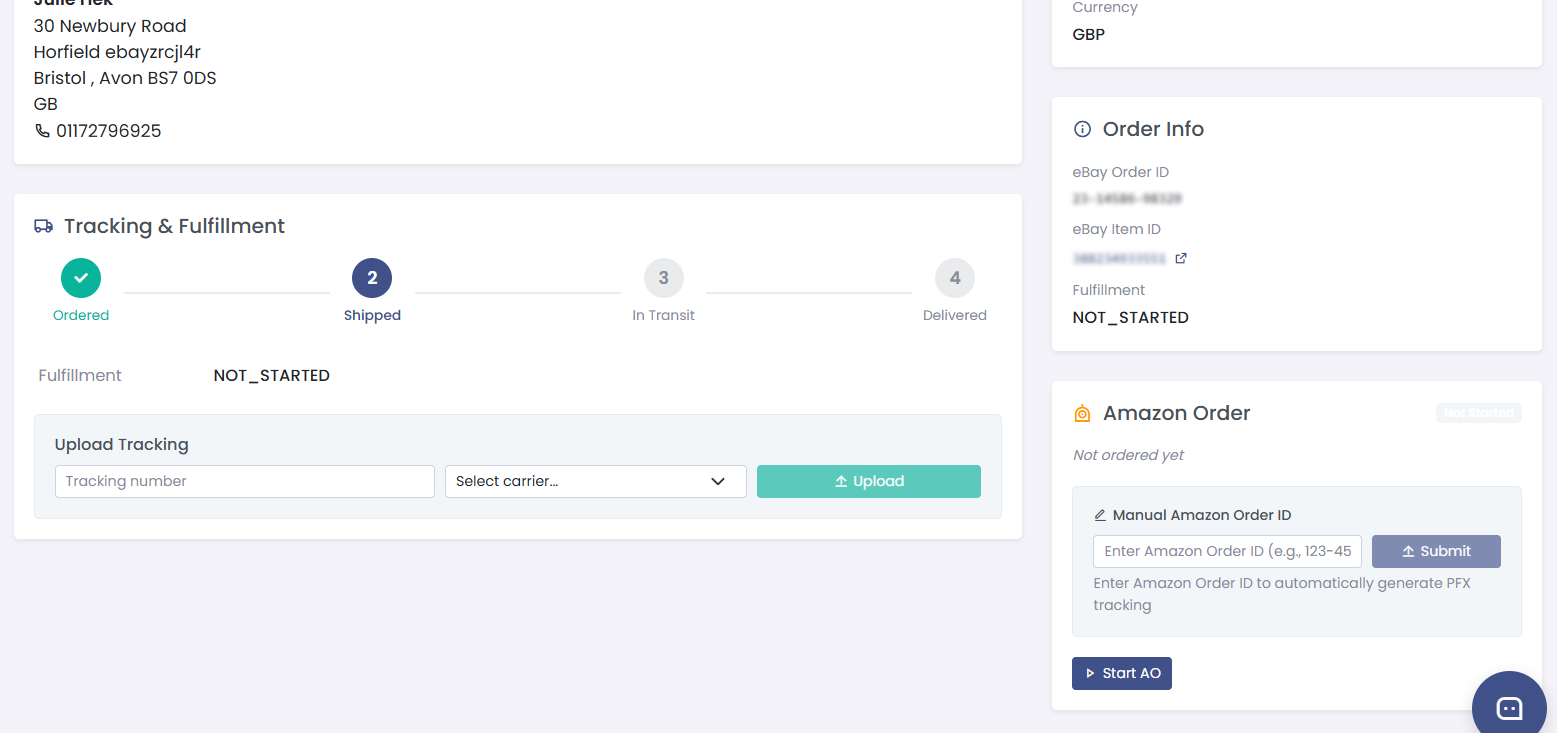
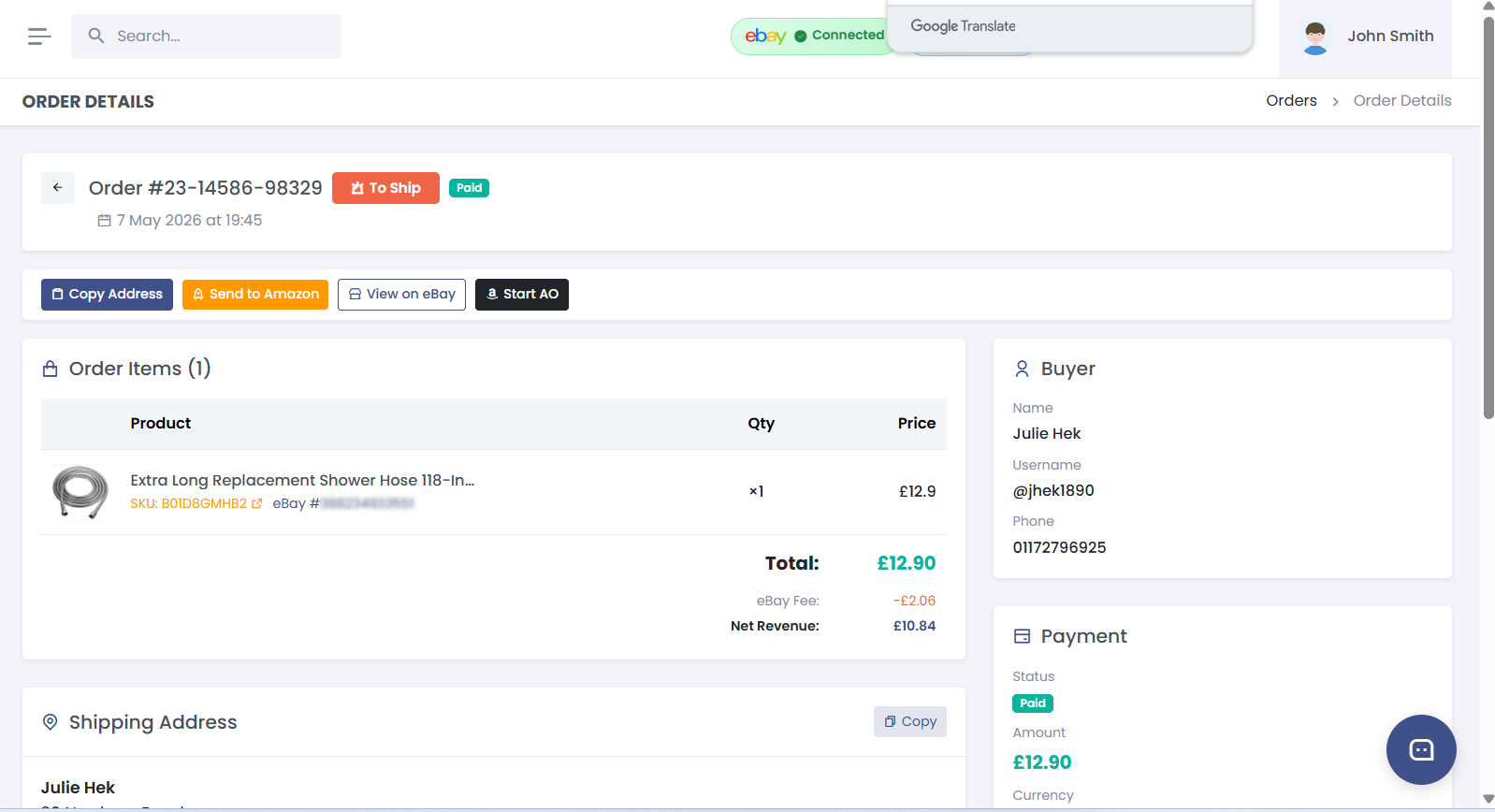
Step 2: Processing a new order — 2 screenshots
Step 3: Order statuses explained
| Status | Meaning | Action needed |
|---|---|---|
| New | Buyer has paid, waiting for fulfilment | Purchase on Amazon |
| Awaiting Shipment | Purchased on Amazon, waiting for dispatch | Wait for Amazon to ship |
| Shipped | Tracking uploaded to eBay | None — order is complete |
| Delivered | Buyer has received the item | None |
| Cancelled | Order was cancelled | Check reason, process refund if needed |
| Return Requested | Buyer wants to return the item | Handle return |
Step 4: Handling cancellations
If a buyer requests a cancellation:
- Go to the order in Orders
- If you haven't purchased on Amazon yet — click Cancel Order and process the eBay refund
- If you've already purchased on Amazon — you'll need to cancel the Amazon order first, then cancel on eBay
Step 5: Returns and refunds
When a buyer opens a return:
- The order status changes to Return Requested in Coderom
- Follow eBay's return process (accept return, provide return label)
- Once the item is returned to the Amazon address, process the Amazon return
- Issue the eBay refund through your eBay seller account
Step 6: Order settings
Go to Settings → Orders to configure:
| Setting | What it does | Recommended |
|---|---|---|
| Auto-sync orders | Pull new orders from eBay automatically | On |
| Order notifications | Get notified when new orders arrive | On |
| Profit display | Show calculated profit on each order | On |
| Default marketplace | Which eBay store to show orders from | Your primary store |
Step 7: Automatic Ordering (AO) Beta
Automatic Ordering (AO) is a Chrome Extension feature that automates the Amazon checkout process when you receive an eBay sale. When enabled, Coderom will automatically place the Amazon order on your behalf — entering the buyer's address, completing checkout, and saving the Amazon Order ID for tracking.
How AO works with your orders
- An eBay sale comes in and appears in your Orders page
- Coderom queues the order for automatic processing
- The Chrome Extension opens Amazon, adds the item to cart, enters the buyer's shipping address, and completes checkout
- The Amazon Order ID is saved and linked to your eBay order
- When Amazon dispatches, tracking is automatically uploaded to eBay
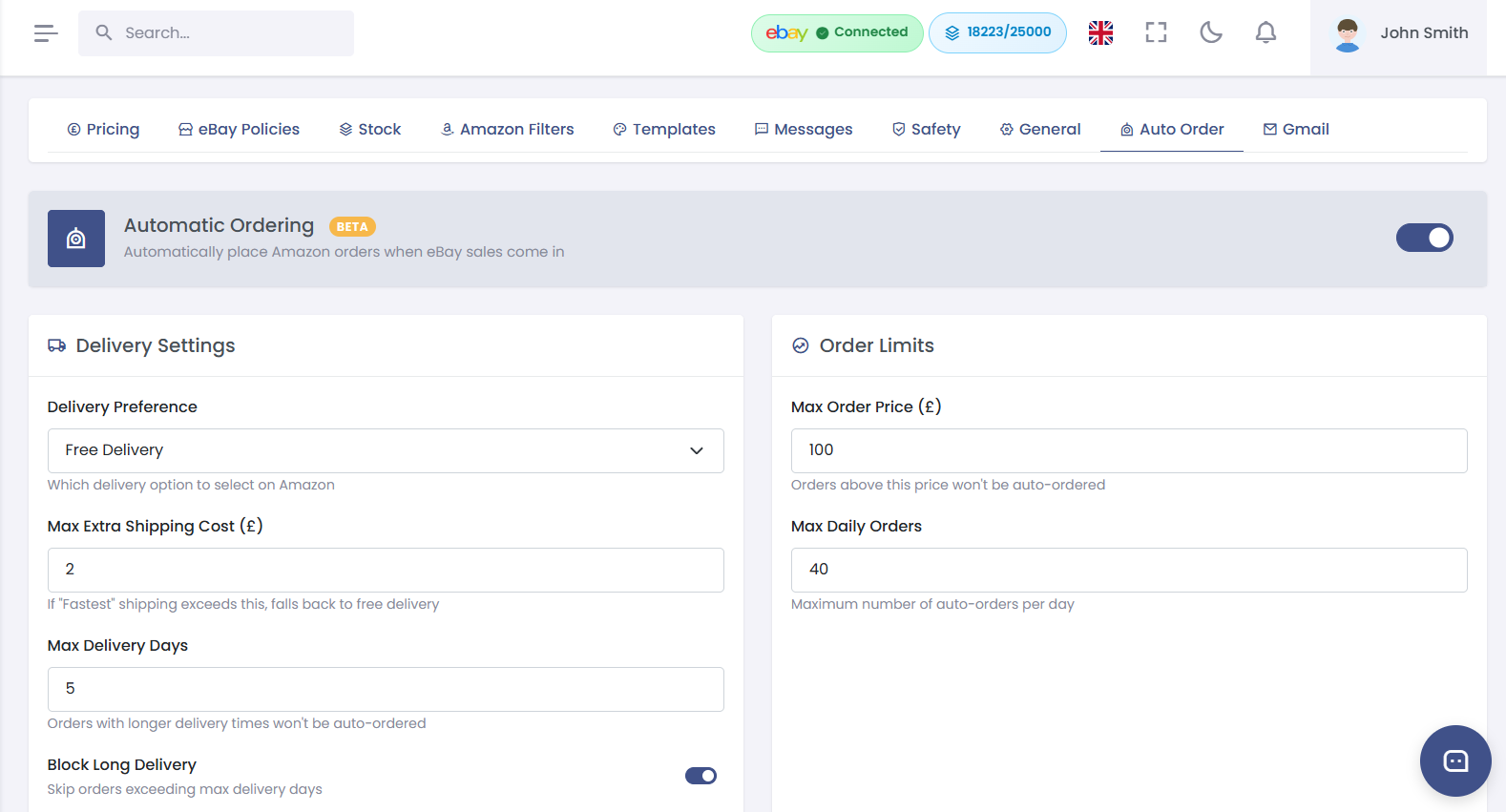
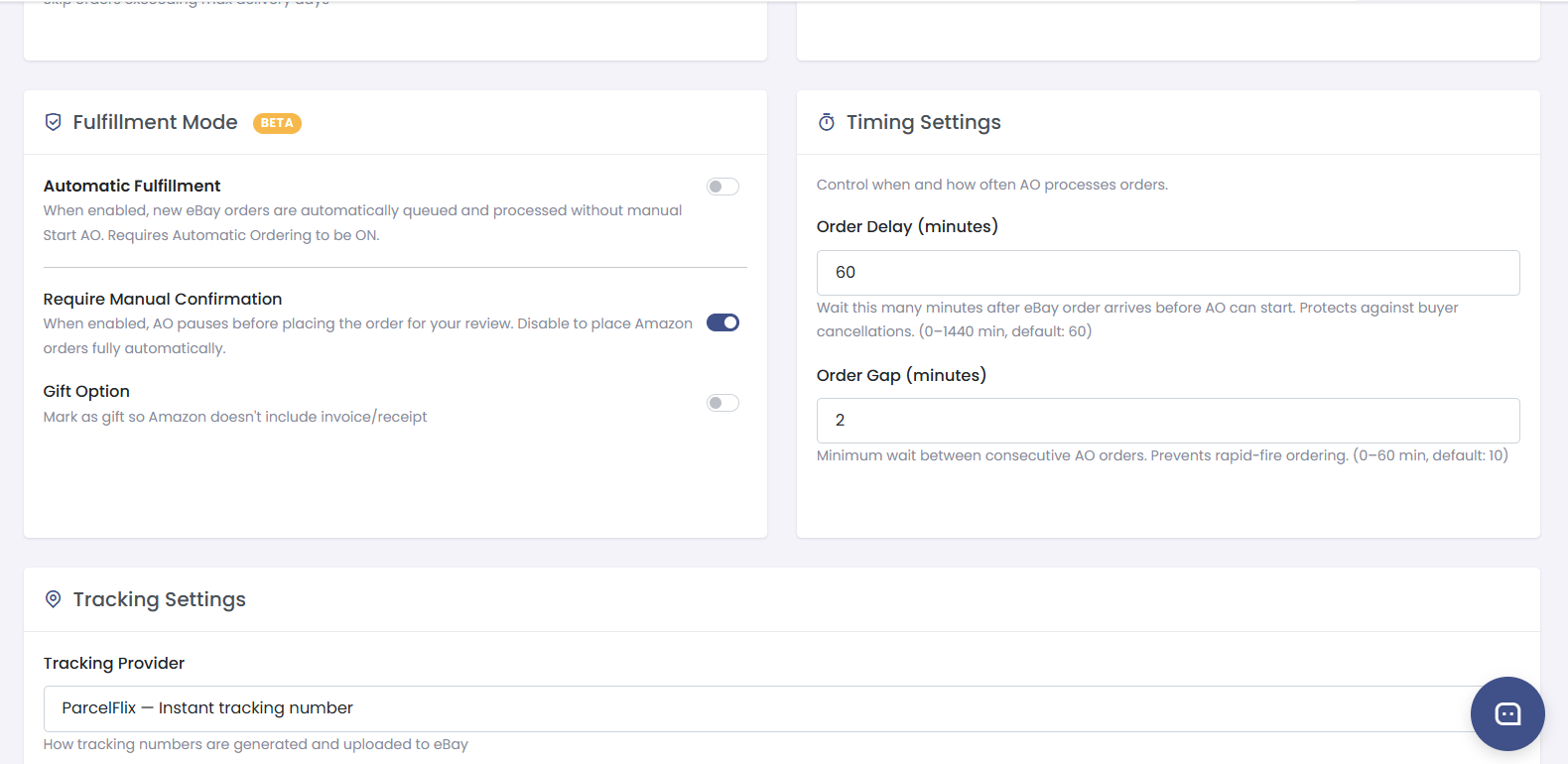
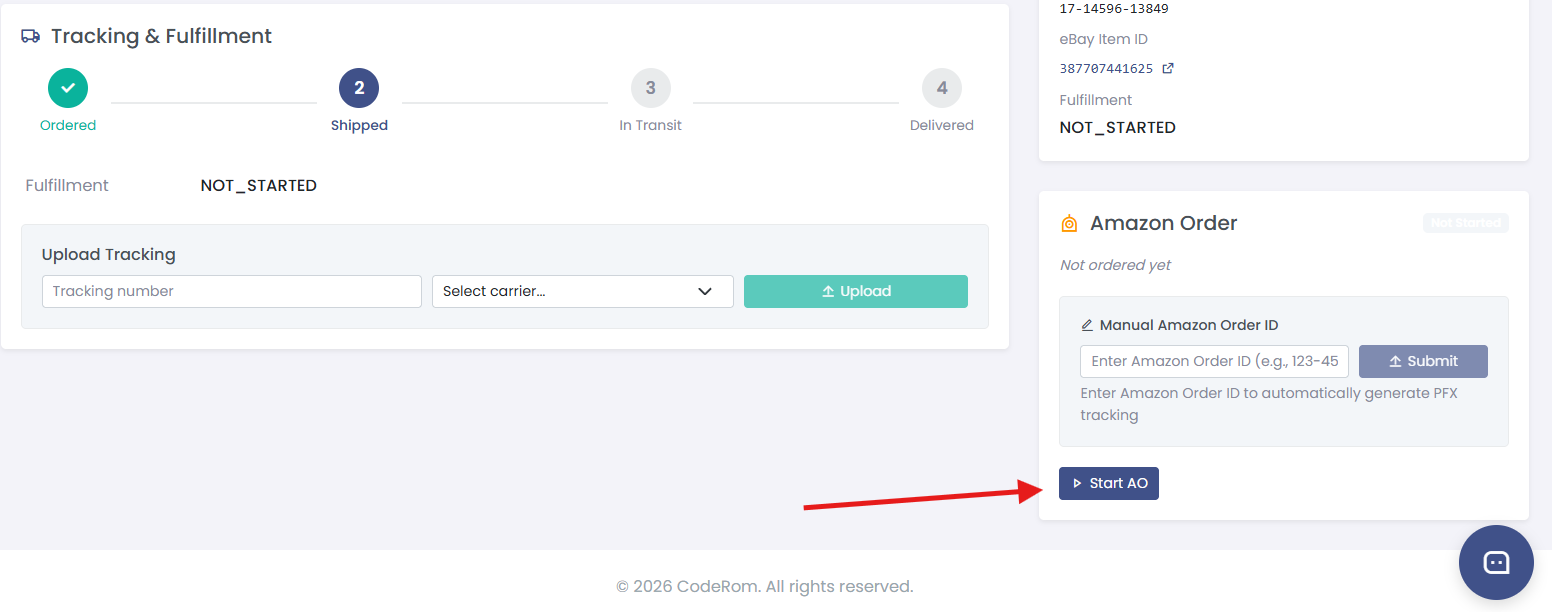
Step 7: Automatic Ordering (AO) — 3 screenshots
AO safety features
AO includes built-in protections to prevent errors:
- Price guard — cancels if Amazon price exceeds your tolerance threshold
- Address verification — confirms shipping address before checkout
- Duplicate prevention — skips orders already processed
- Queue timeout — abandons stuck orders automatically
Was this helpful?
Still need help? Browse all articles or contact support.