Step 1: What is VeRO and why does it matter?
VeRO (Verified Rights Owner) is eBay's programme that allows brand owners and rights holders to report and remove listings that infringe their intellectual property. If you list a product from a brand that has enrolled in VeRO, eBay can remove your listing and — in repeated cases — restrict your selling account.
Common VeRO triggers include:
- Listing products from brands that have not authorised third-party resellers
- Using brand names or trademarked terms in your listing title or description
- Selling replica, counterfeit, or unauthorised items

Step 1: What is VeRO?
Step 2: Blocked Brands
The Blocked Brands list tells Coderom which brand names to avoid entirely. When a product's title or brand field matches an entry on this list, Coderom will skip it during scraping and never import it to your draft products.
How to manage your Blocked Brands
- Go to Settings → Safety
- Find the Blocked Brands panel (red header)
- Type or paste brand names — one per line
- Use the Load VeRO Brands button to instantly load Coderom's curated list of known VeRO-enrolled brands
- Click Save to apply
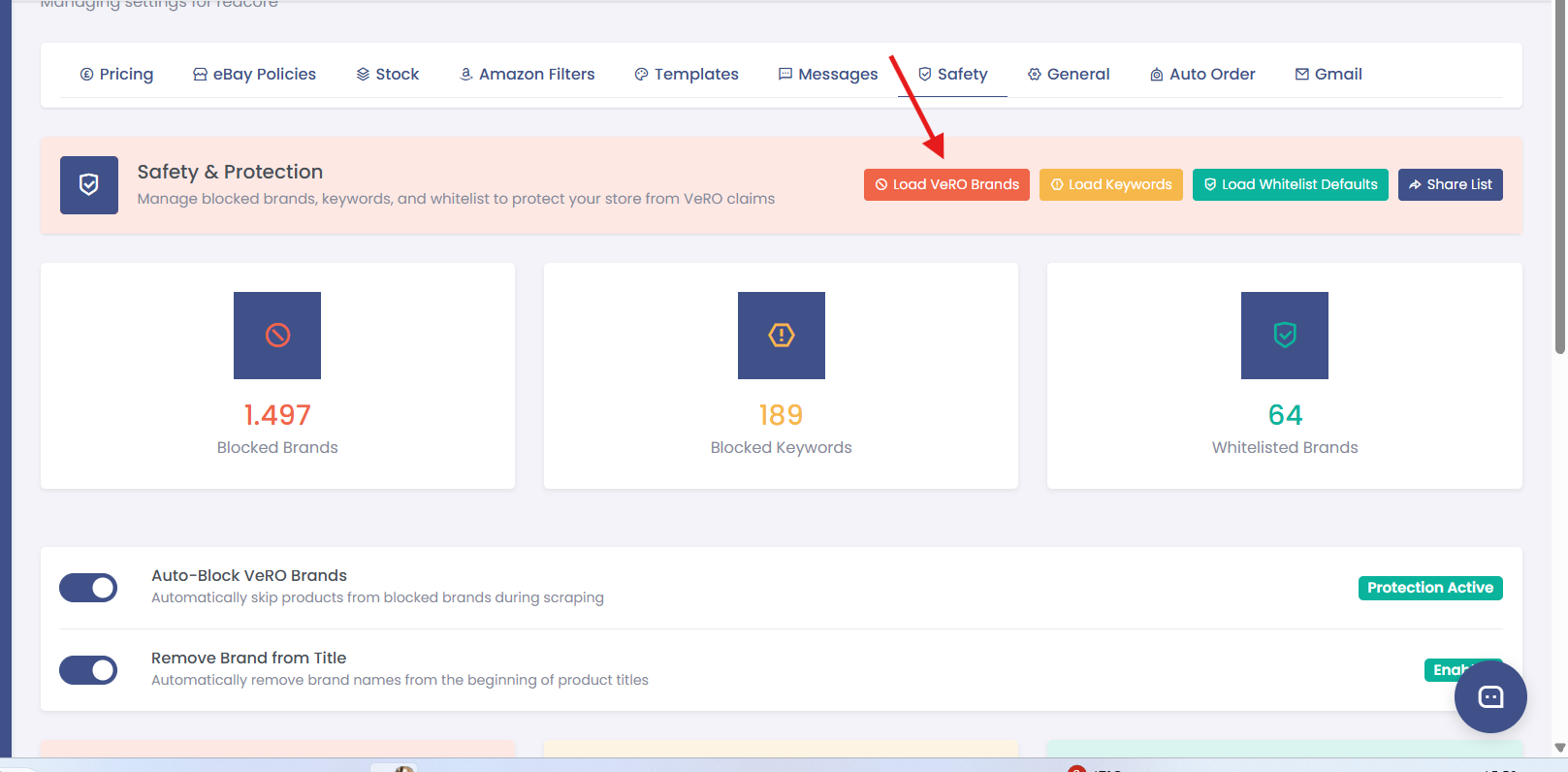
Step 2: Blocked Brands
Step 3: Blocked Keywords
Blocked Keywords let you filter out products based on words in their title or description — even if the brand itself is not blocked. This is useful for generic terms that frequently appear in problematic listings.
Examples of useful blocked keywords
- Brand-specific model names (e.g. "AirPods", "PlayStation")
- Terms indicating unauthorised items (e.g. "replica", "inspired by", "compatible with Apple")
- Categories you don't want to sell (e.g. "adult", "weapon", "knife")
How to manage Blocked Keywords
- Go to Settings → Safety
- Find the Blocked Keywords panel (yellow header)
- Enter keywords — one per line
- Use Load Keywords to load Coderom's recommended keyword list
- Click Save
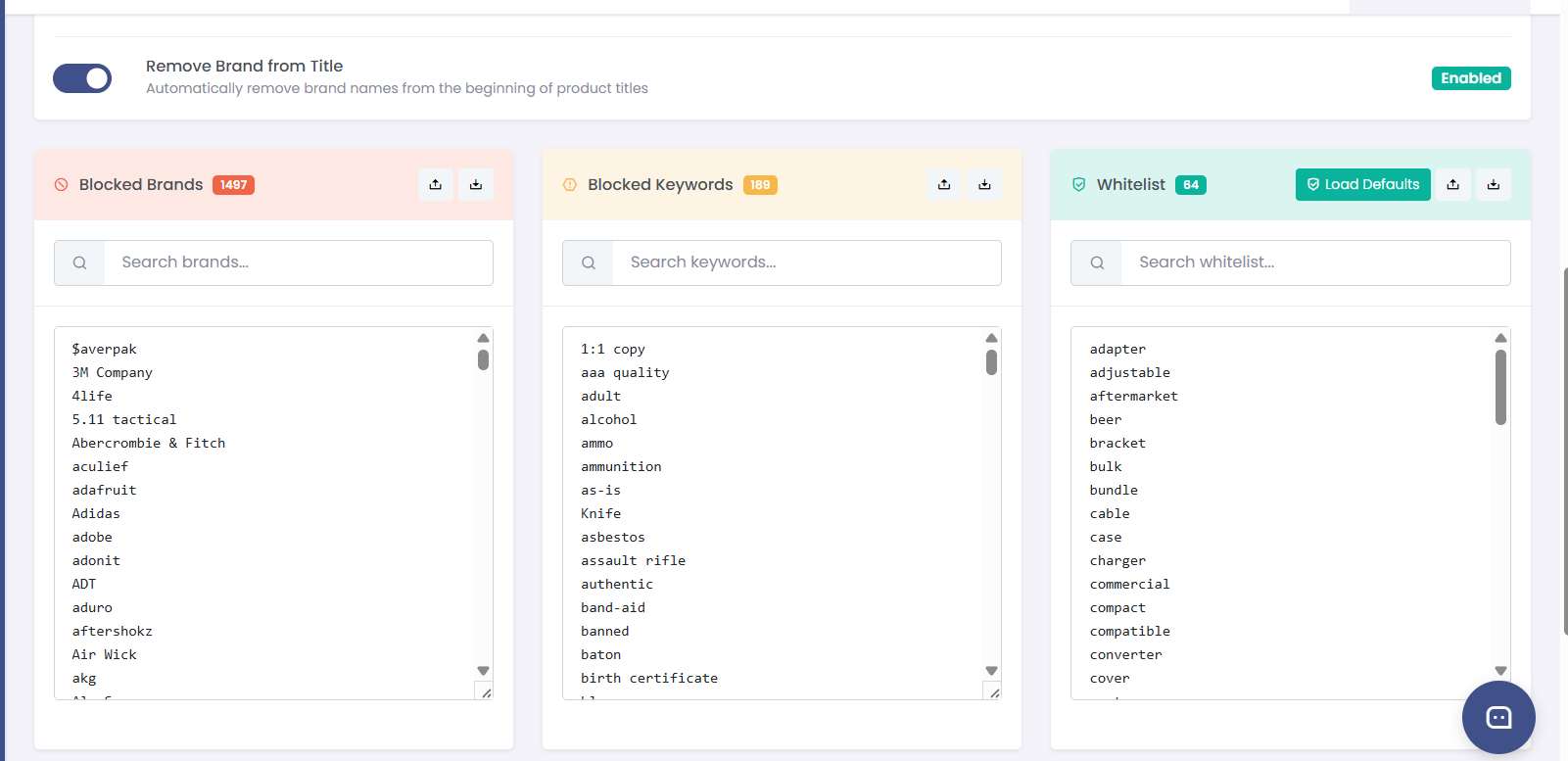
Step 3: Blocked Keywords
Step 4: Whitelist
The Whitelist overrides the Blocked Brands list. If you are an authorised reseller of a brand that also appears on your blocked list, add it to the Whitelist — Coderom will allow products from that brand even if it matches a blocked entry.
How to manage your Whitelist
- Go to Settings → Safety
- Find the Whitelist panel (green header)
- Enter brand names you are authorised to resell — one per line
- Use Load Whitelist Defaults to load Coderom's suggested whitelist
- Click Save
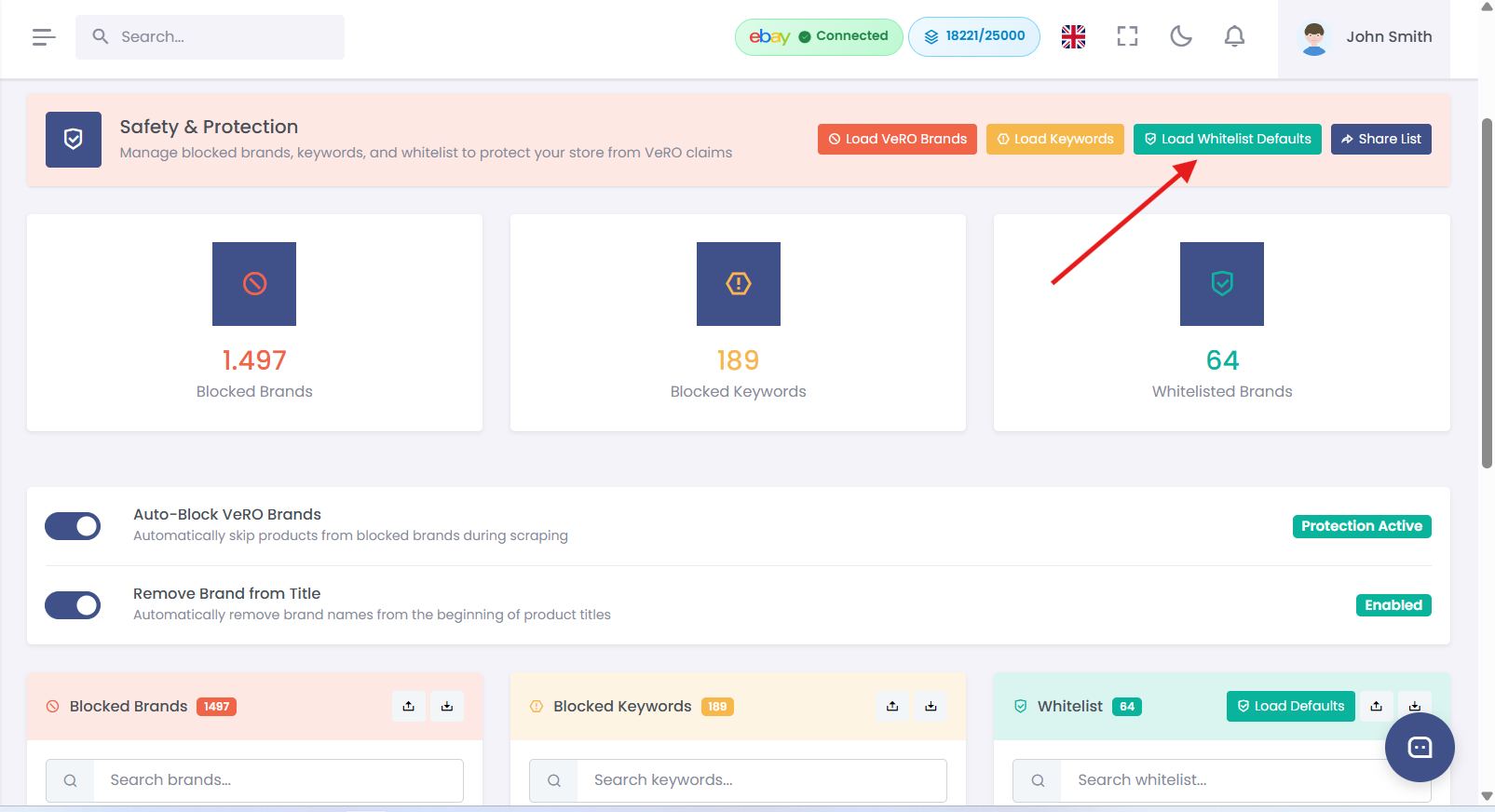
Step 4: Whitelist
Step 5: Auto-Block VeRO Brands and Remove Brand from Title
These two toggles in Settings → Safety add an extra layer of automatic protection:
| Setting | What it does | Recommended |
|---|---|---|
| Auto-Block VeRO Brands | Automatically skips products from blocked brands during scraping — no manual review needed | ✅ On |
| Remove Brand from Title | Automatically removes the brand name from the beginning of the eBay listing title — reduces VeRO keyword triggers | ✅ On |
Step 6: Load defaults
Coderom maintains curated default lists to help you get protected quickly. You can load these with one click from the top of the Safety settings page:
| Button | What it loads | When to use |
|---|---|---|
| Load VeRO Brands | Adds Coderom's curated list of known VeRO-enrolled brands to your Blocked Brands | When setting up for the first time or after a reset |
| Load Keywords | Adds a recommended set of high-risk keywords to your Blocked Keywords list | When you want a solid baseline keyword filter |
| Load Whitelist Defaults | Adds a set of commonly whitelisted brands that are generally safe to resell | After loading VeRO Brands, to restore commonly allowed brands |
Was this article helpful?