Step 1: What is Gmail tracking?
When Amazon dispatches an order, they send a confirmation email to your Gmail. Coderom's Gmail integration reads these emails automatically and:
- Extracts the tracking number
- Matches it to the correct eBay order
- Uploads the tracking to eBay
- Marks the order as shipped
This eliminates the need to manually copy tracking numbers from Amazon emails.
Step 1: What is Gmail tracking?
Step 2: How it works
The process is fully automated:
- Amazon dispatches your order and sends a "Your order has been dispatched" email
- Coderom checks your Gmail every few hours for new dispatch emails
- Tracking number extracted from the email content
- Order matched — Coderom links the tracking to the correct eBay order using the Amazon Order ID
- eBay updated — tracking number and carrier are uploaded to eBay
- Buyer notified — eBay sends the buyer a dispatch notification
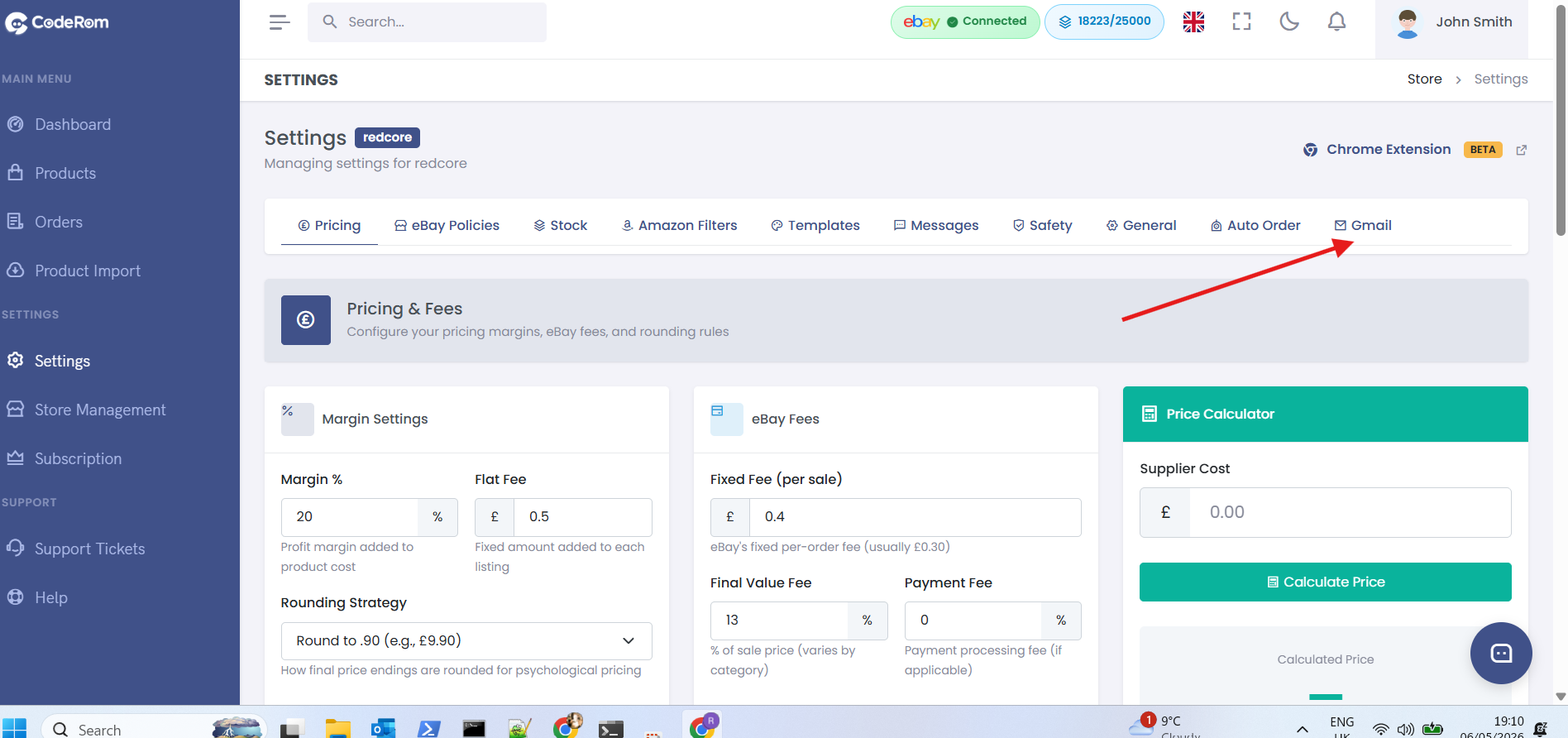
Step 2: How it works
Tip: Make sure your Amazon order confirmation emails go to the Gmail account you connect to Coderom. If you use a different email for Amazon, set up email forwarding.
Step 3: Connect your Gmail account
- Enable 2-Step Verification on your Google account (required for App Passwords)
- Go to
myaccount.google.com/apppasswords, enter an app name, and click Create - Copy the 16-character App Password that Google shows you
- In Coderom, open Settings → Email Integration
- Enter your Gmail address, paste the App Password, then click Connect (read-only — Coderom cannot send or delete emails)
- Once connected, you'll see a "Connected" status with your email address
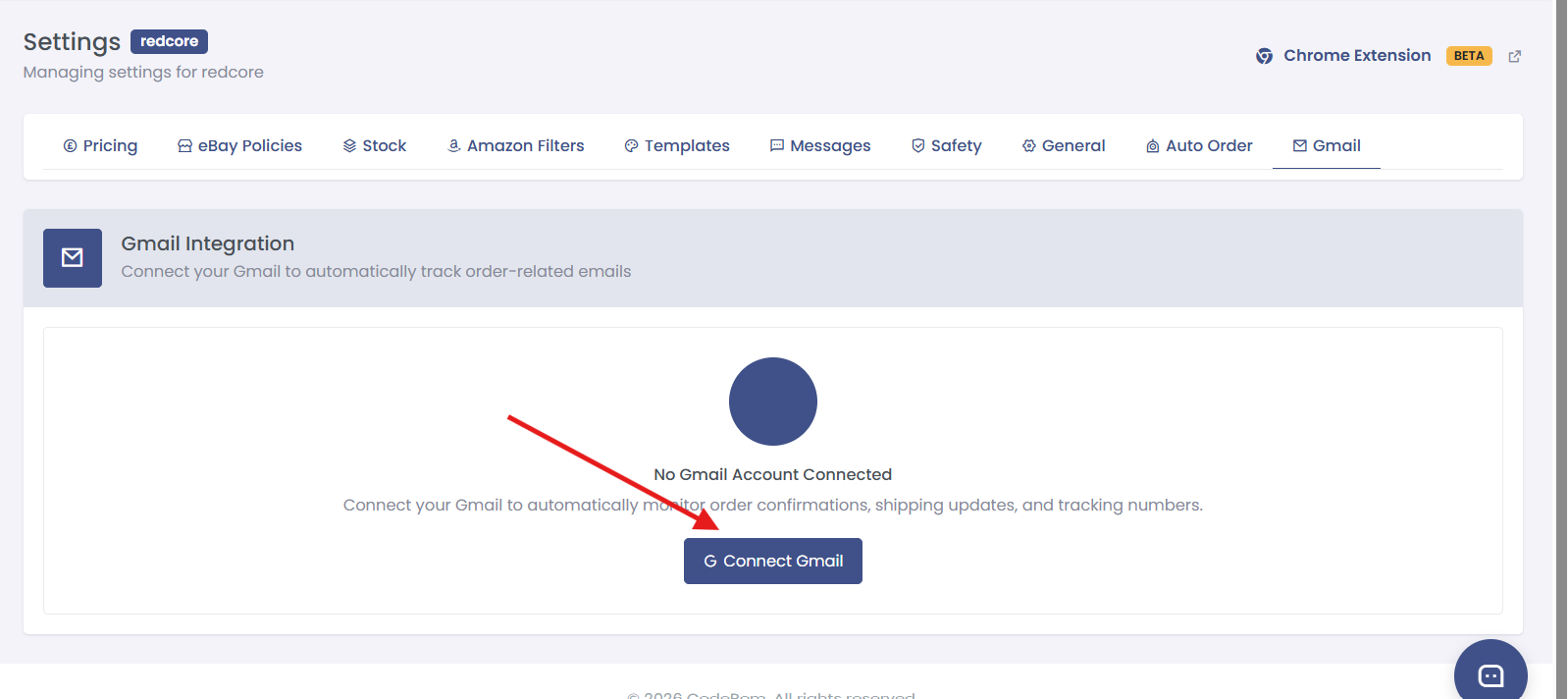
Step 3: Connect your Gmail account
Tip: Coderom uses read-only access. It can only read your emails to find tracking information — it cannot send, modify, or delete any emails.
Step 4: Supported carriers
Coderom recognises tracking numbers from these carriers:
| Carrier | Region | Tracking format |
|---|---|---|
| Royal Mail | UK | 2-letter + 9 digits + GB |
| DPD | UK/EU | 14-digit number |
| Hermes/Evri | UK | 16-digit number |
| Amazon Logistics | UK/US/EU | TBA + digits |
| USPS | US | 20-22 digit number |
| UPS | Global | 1Z + 16 characters |
| FedEx | Global | 12-15 digit number |
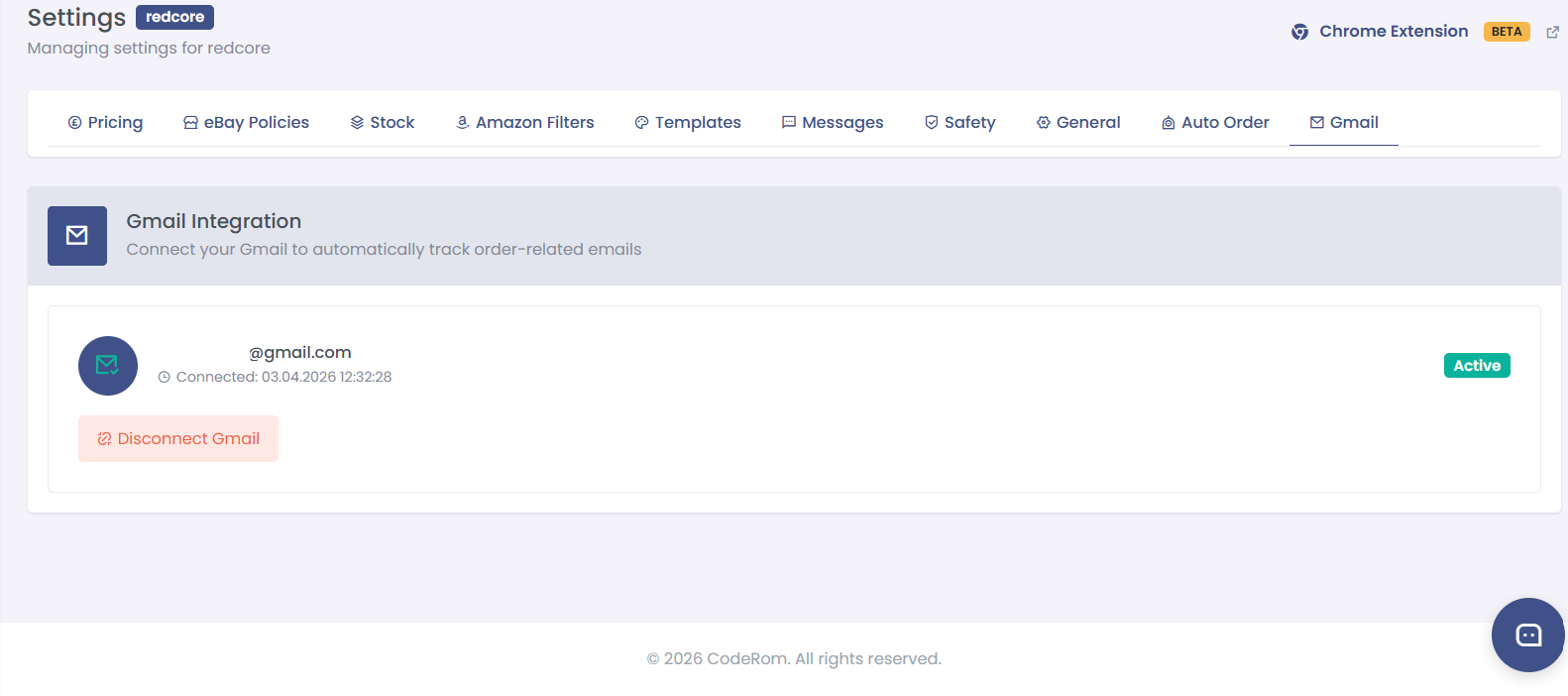
Step 4: Supported carriers
Step 5: Tracking status and monitoring
Monitor your tracking status from the Orders page:
| Status | Meaning |
|---|---|
| Awaiting tracking | Order shipped, waiting for Gmail email |
| Tracking found | Tracking extracted from email |
| Uploaded to eBay | Tracking successfully sent to eBay |
| Failed | Could not extract or upload tracking — needs manual review |
Go to Orders and filter by tracking status to see which orders need attention.
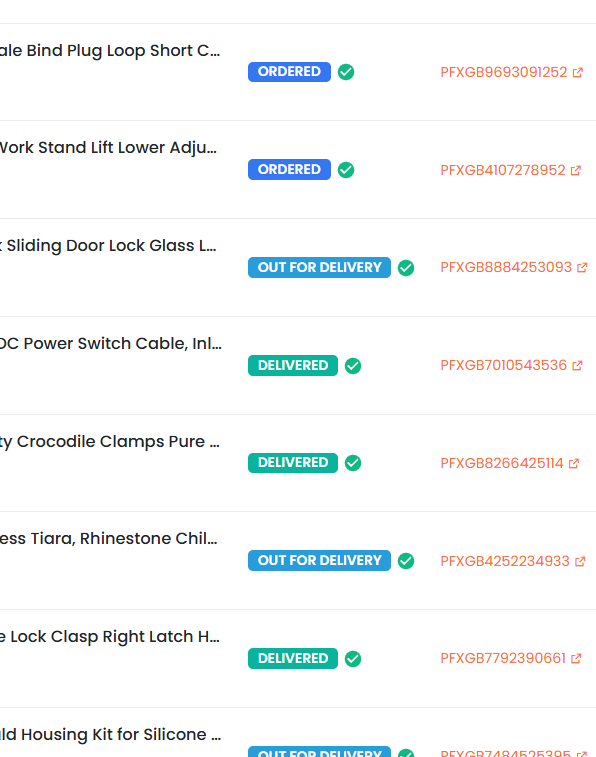
Step 5: Tracking status and monitoring
Step 6: Troubleshooting
| Issue | Cause | Solution |
|---|---|---|
| "No tracking found" | Amazon email not yet received | Wait a few hours — Amazon emails can be delayed |
| "Gmail not connected" | App Password invalid or revoked (e.g. 2-Step Verification turned off) | Generate a new App Password and reconnect in Settings → Email Integration |
| "Carrier not recognised" | Unusual tracking format | Enter tracking manually on the order page |
| "Wrong order matched" | Multiple similar orders | Check the Amazon Order ID matches correctly |
| Emails going to spam | Gmail filtering | Add Amazon to your contacts or check spam folder |
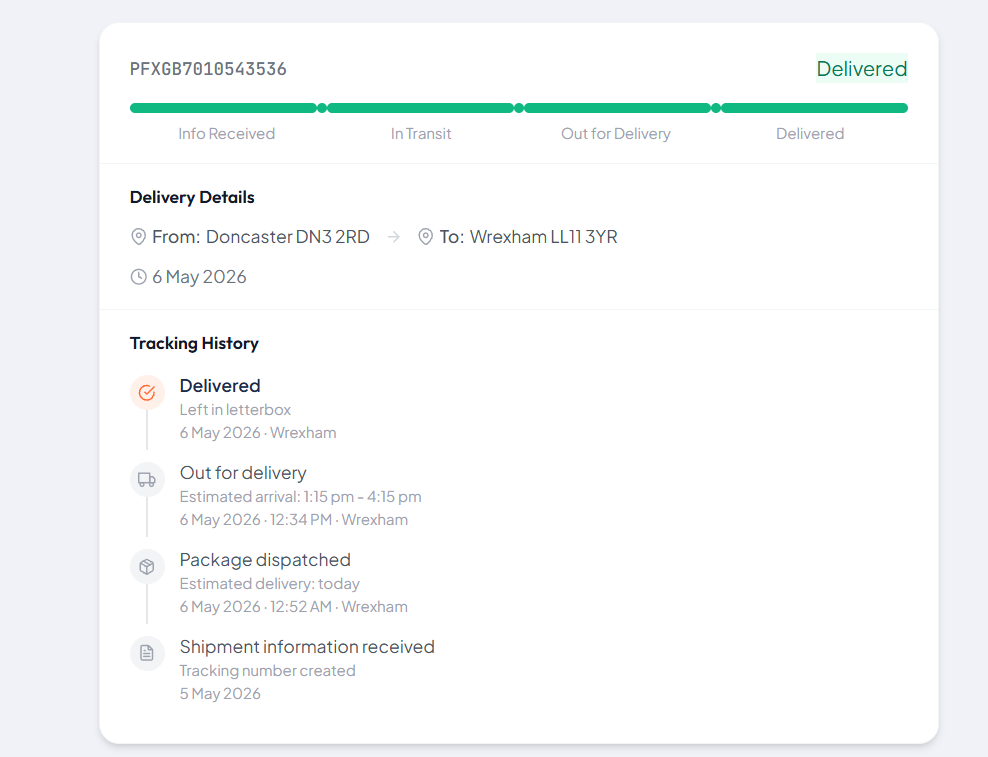
Step 6: Troubleshooting
Was this helpful?
Still need help? Browse all articles or contact support.