Step 1: What are listing templates?
Listing templates control how your product description looks on eBay. Instead of plain text, your listings get a professional, branded layout with:
- Your store logo and name
- Structured product details
- Clean, mobile-friendly design
- Consistent branding across all your listings
A good template builds buyer trust and can increase your conversion rate.
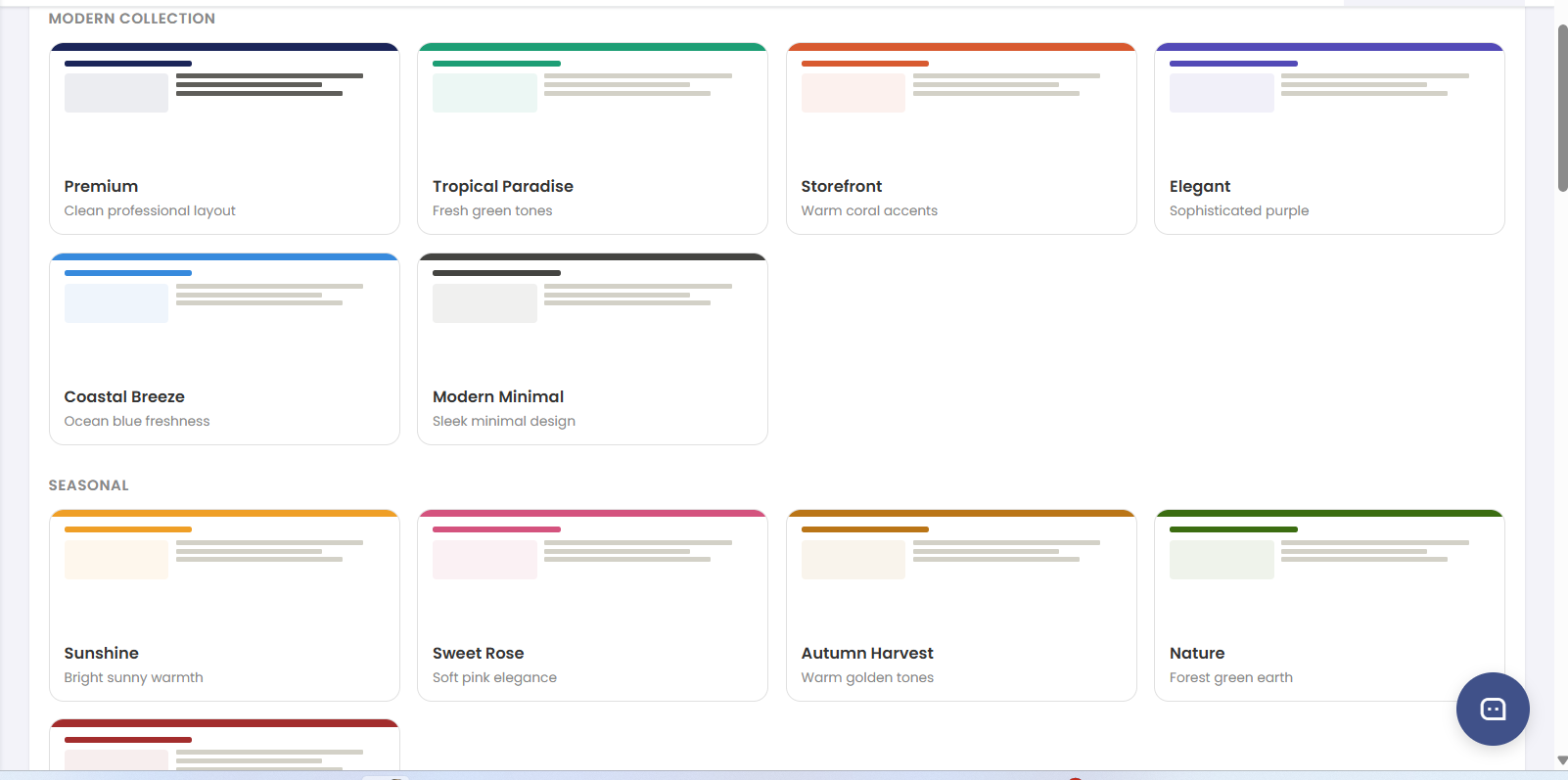
Step 1: What are listing templates?
Step 2: Choose a template
- Go to Settings → Listing Templates from the sidebar
- Browse the available template designs
- Click Preview on any template to see how it looks with sample data
- Click Select to choose your template
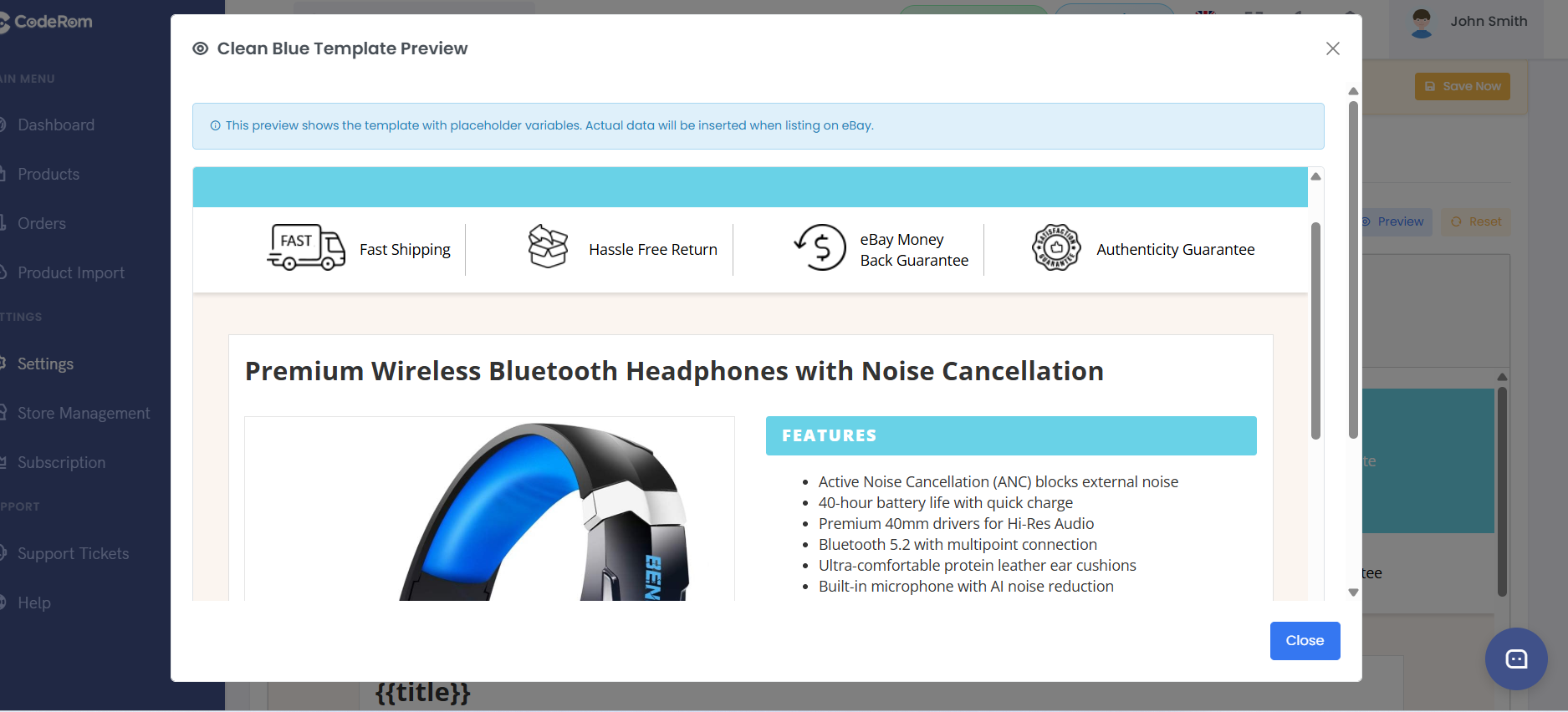
Step 2: Choose a template
Tip: Each template is fully responsive — it looks great on both desktop and mobile. eBay has strict rules about HTML in listings, and all Coderom templates comply with these rules.
Step 3: Customise your template
After selecting a template, you can personalise it:
- Click Customise on your selected template
- Upload your store logo
- Set your brand colours (primary and secondary)
- Add a store description or tagline
- Choose which product sections to show (features, specifications, shipping info)
- Click Save
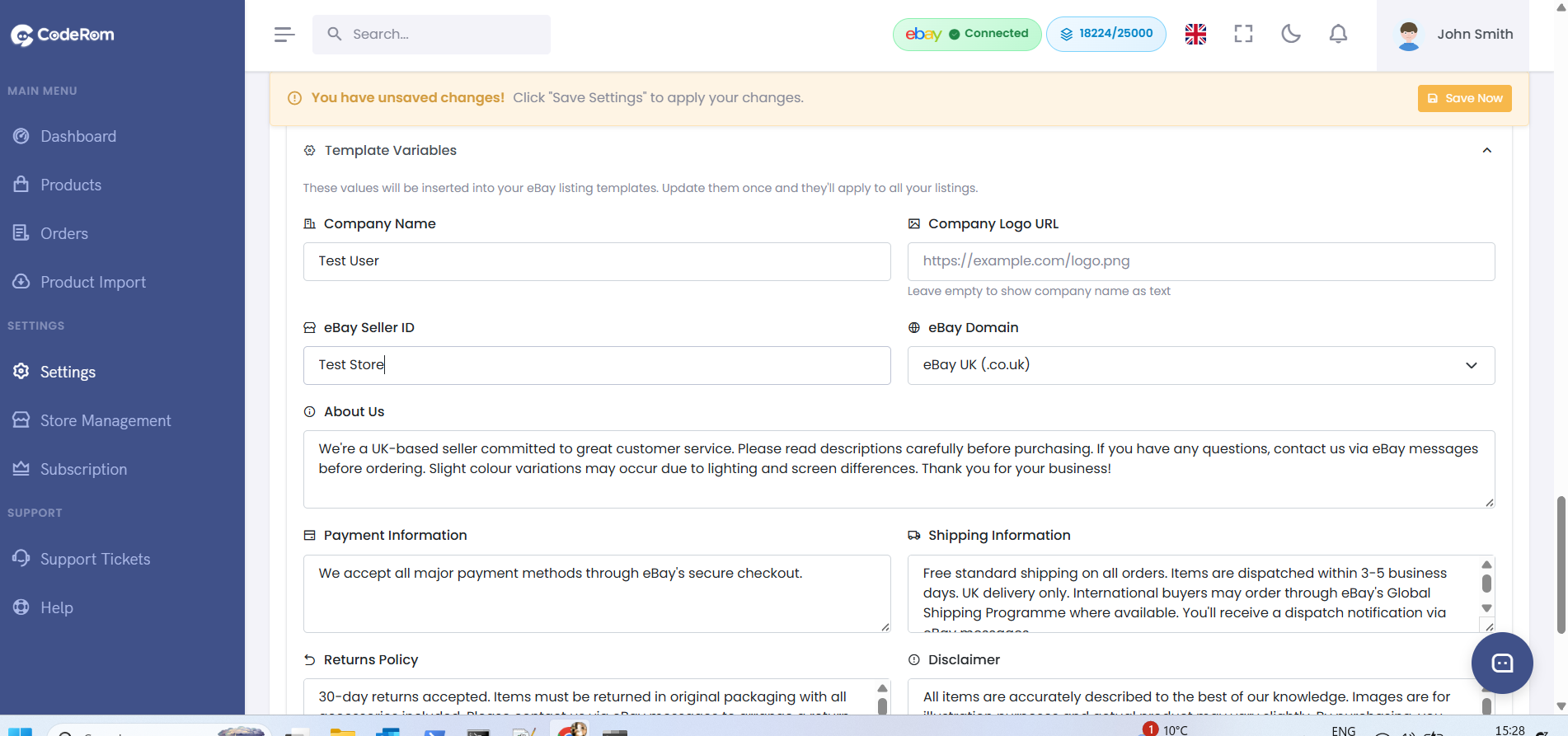
Step 3: Customise your template
| Customisation | Description | Example |
|---|---|---|
| Store logo | Your brand logo displayed at the top | 200x60px PNG recommended |
| Primary colour | Used for headers and borders | #2563eb (blue) |
| Secondary colour | Used for accents and buttons | #f59e0b (amber) |
| Store tagline | Short text below your logo | "Premium electronics at the best prices" |
| Sections | Toggle visibility of each section | Features, Specs, Shipping, Returns |
Step 4: Apply a template to your products
Templates are applied automatically to new listings. For existing listings:
- Go to Draft Products or Active Products
- Select the products you want to update
- Click Apply Template
- Choose your template
- Click Apply — Coderom will update the descriptions on eBay
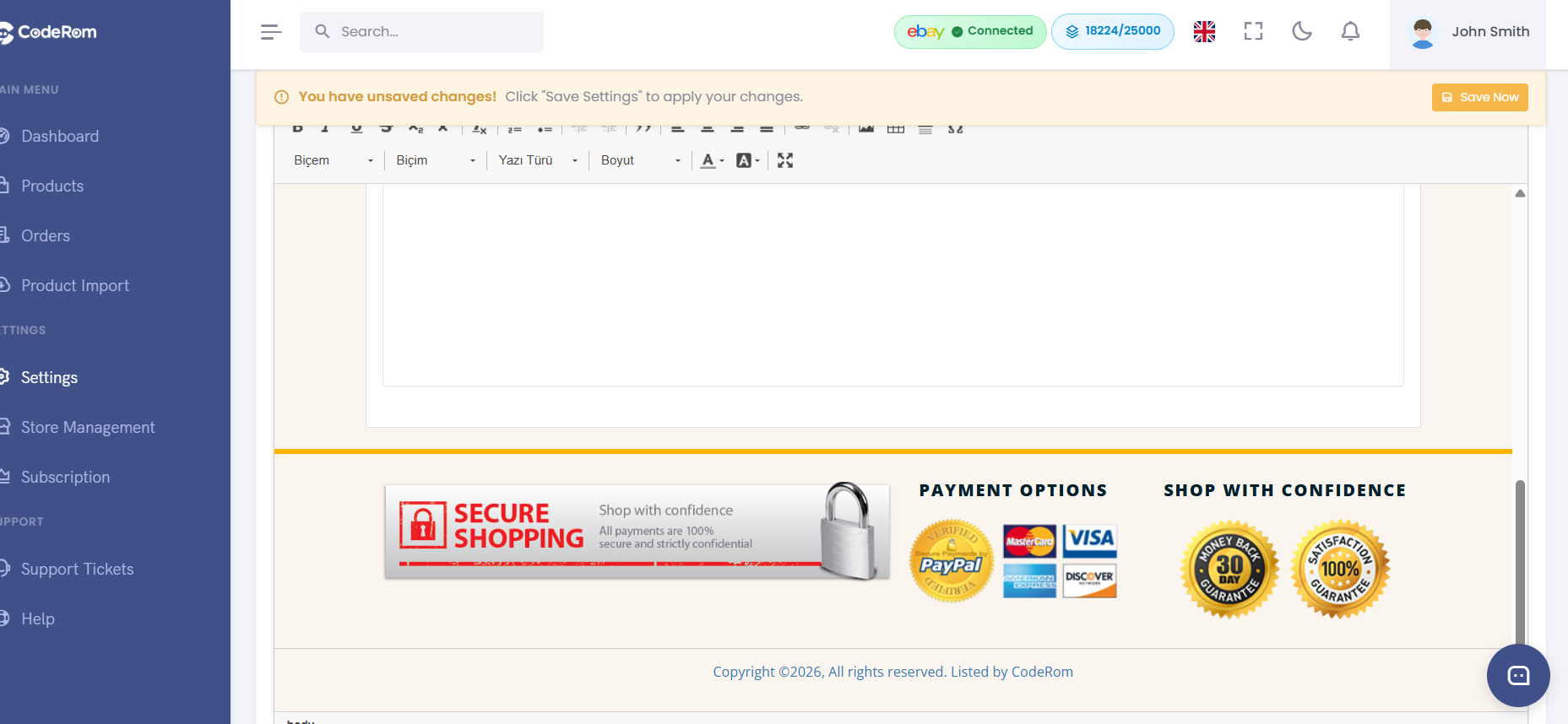
Step 4: Apply a template to your products
Tip: Applying a template to active listings will revise them on eBay automatically. The product information stays the same — only the visual layout changes.
Step 5: Template settings
Go to Settings → Listing Templates to manage your template preferences:
| Setting | What it does | Recommended |
|---|---|---|
| Default template | Automatically applied to all new listings | Choose your favourite |
| Auto-apply on publish | Apply template when publishing drafts | On |
| Include shipping info | Show shipping details in the template | On |
| Include returns policy | Show your returns policy | On |
| Show store branding | Display your logo and store name | On |
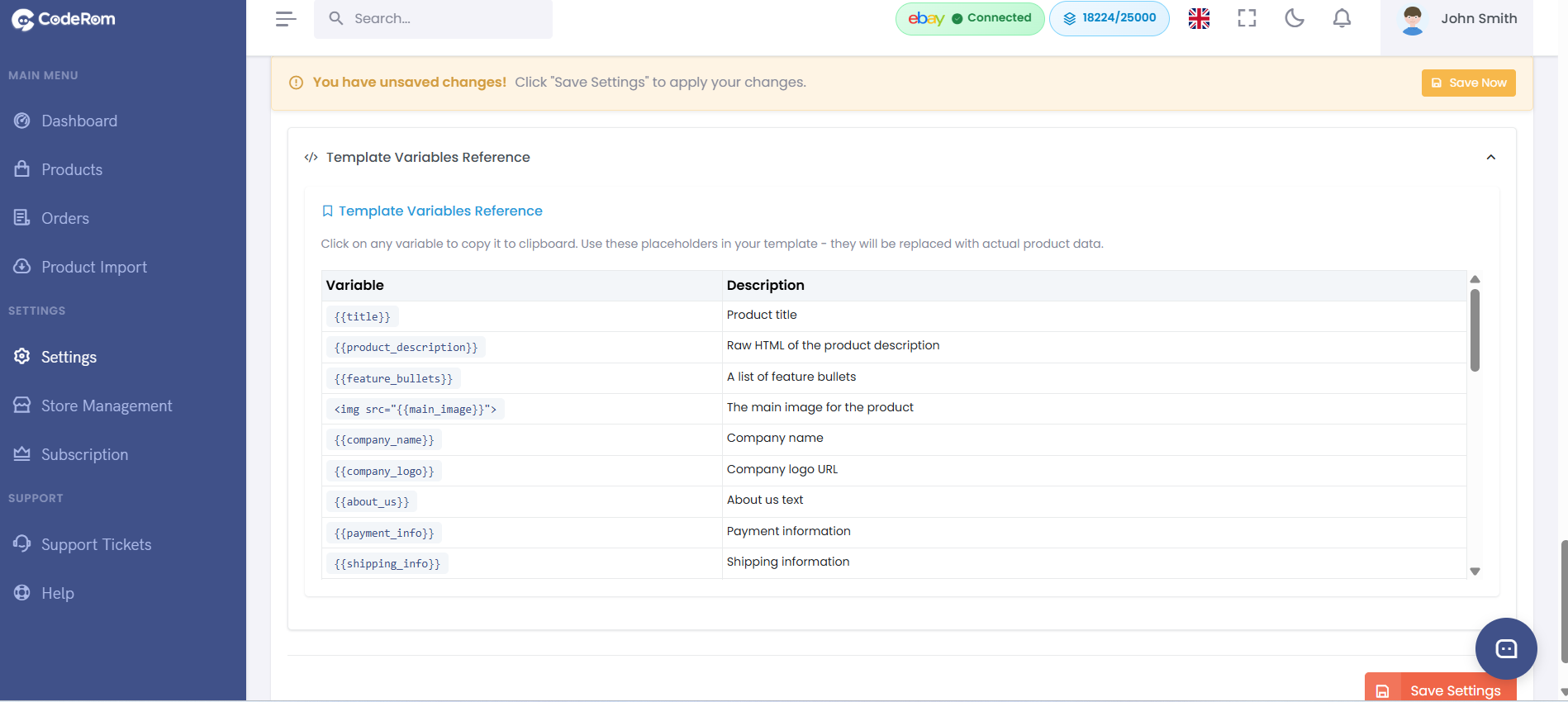
Step 5: Template settings
Was this helpful?
Still need help? Browse all articles or contact support.